How to create a VM
Before starting to create a VM, check you have inserted your SSH public key in Access & Security.
If the public key is not present, follow this guide to add it.
In addition, you need to create and configure a network using this guide to create a network
and this guide to create a router.
Log in to the Openstack web dashboard, chose Openstack federated Credentials, click on gluu.fisica.unipg.it, login with your PIM username and password, and, from the upper menu, select the project in which you want to create a virtual machine (VM).

In the left panel, click Project, then Instances and then the Launch Instance button in the upper right part of the page, as shown.

In the new window, configure the VM:
-
in the
Detailstab, in Instance Name type a name for the VM; in Availability Zone select "nova"; in Count set 1 (or higher values if you want to create more VMs);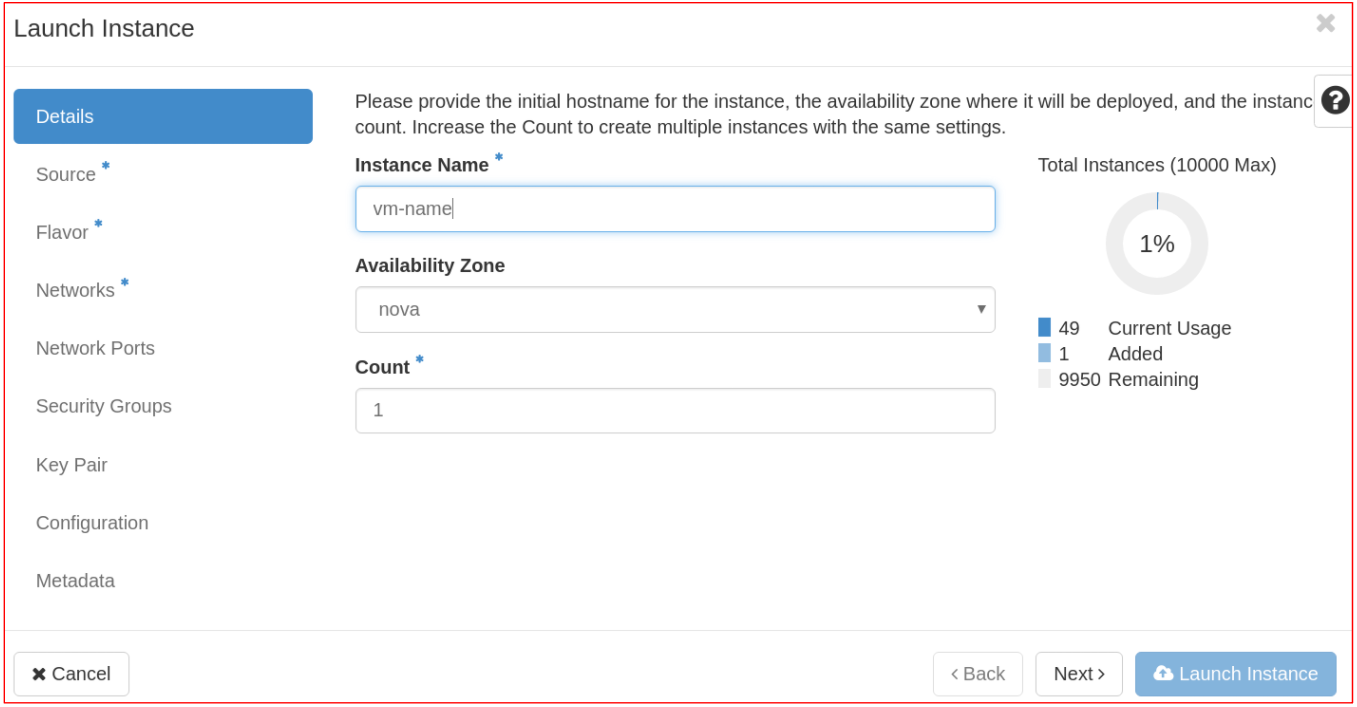
-
in the
Sourcetab, select "Image" in Select Boot Source; from the Available menu, add the image for your VM (in the example in the figure, Ubuntu 16.04);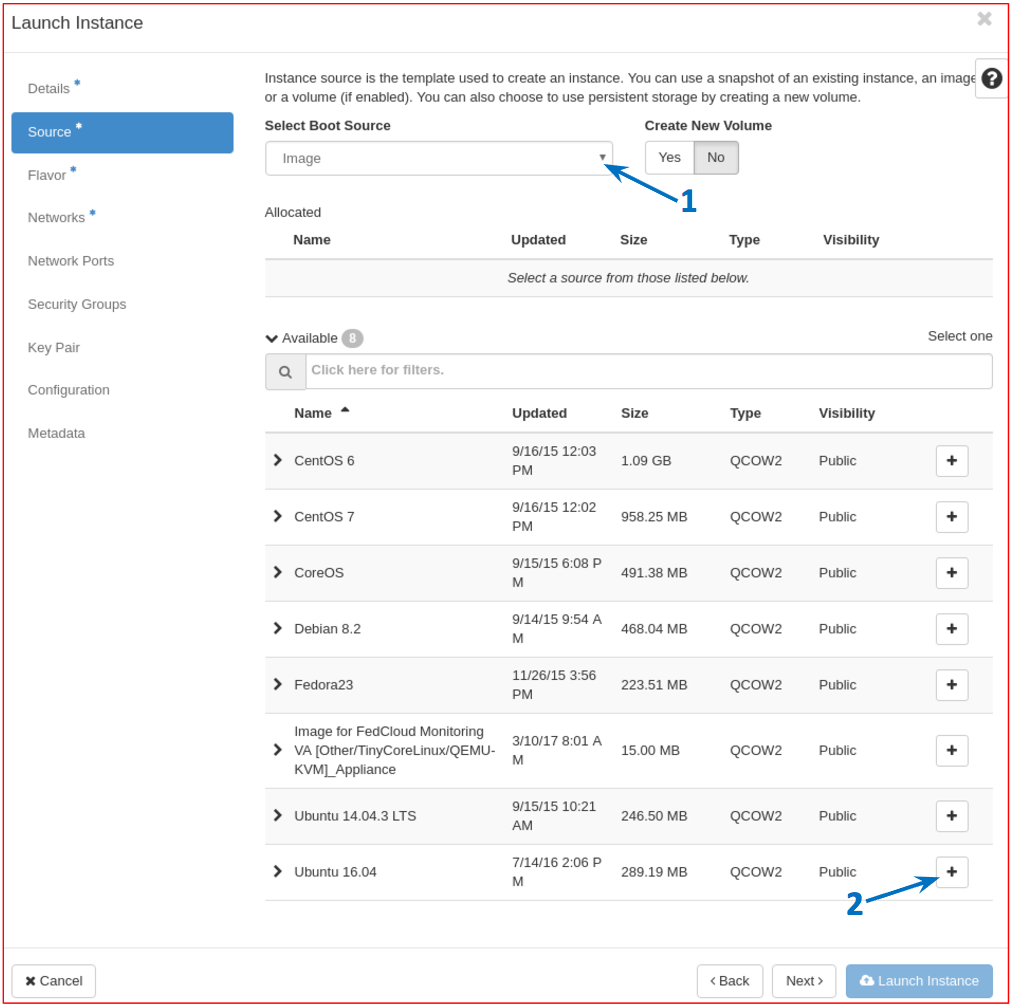
-
in the
Flavortab, select the flavor you need for the VM from the Available menu (in the example in the figure, tha flavor "small" is added);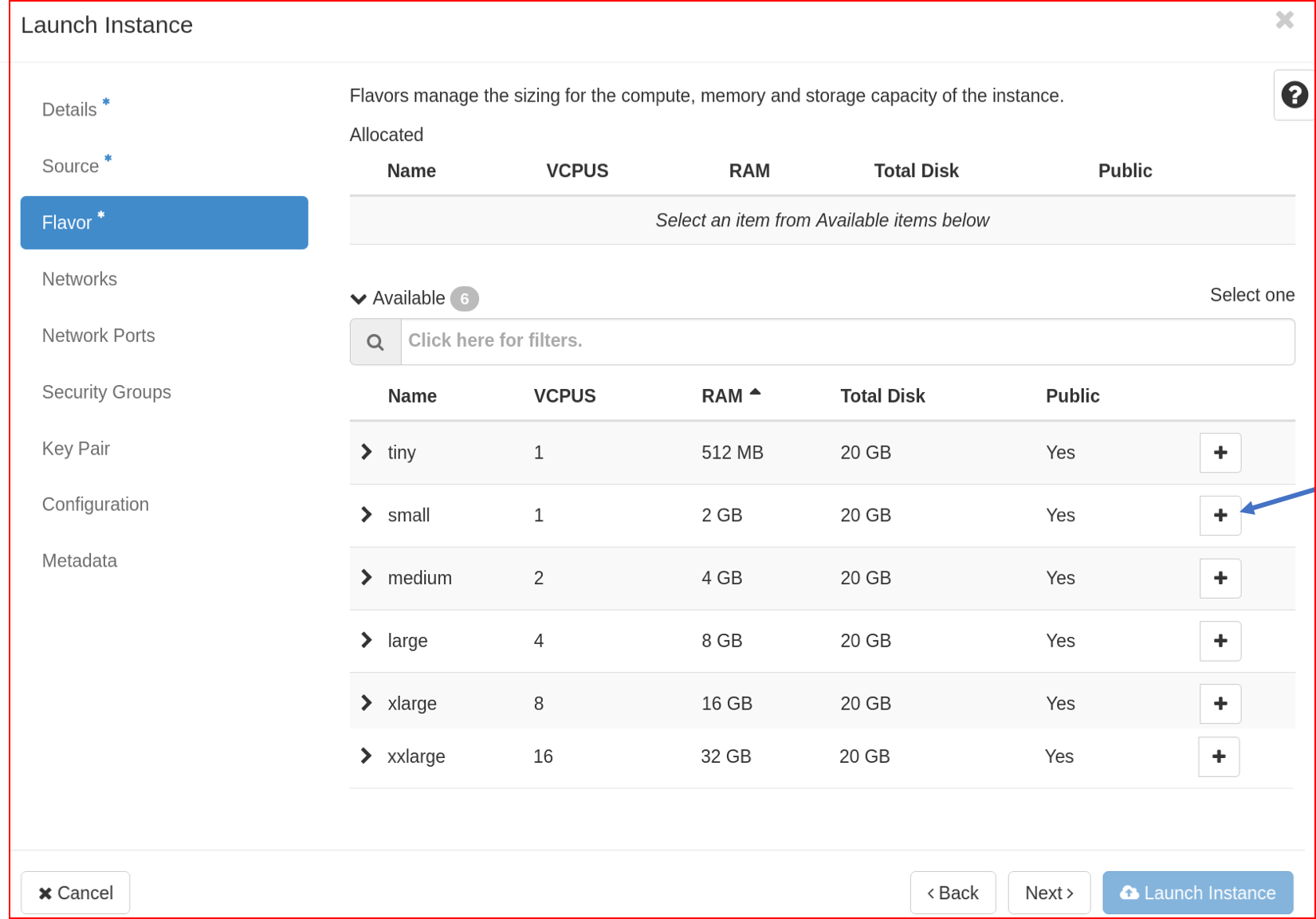
-
in the
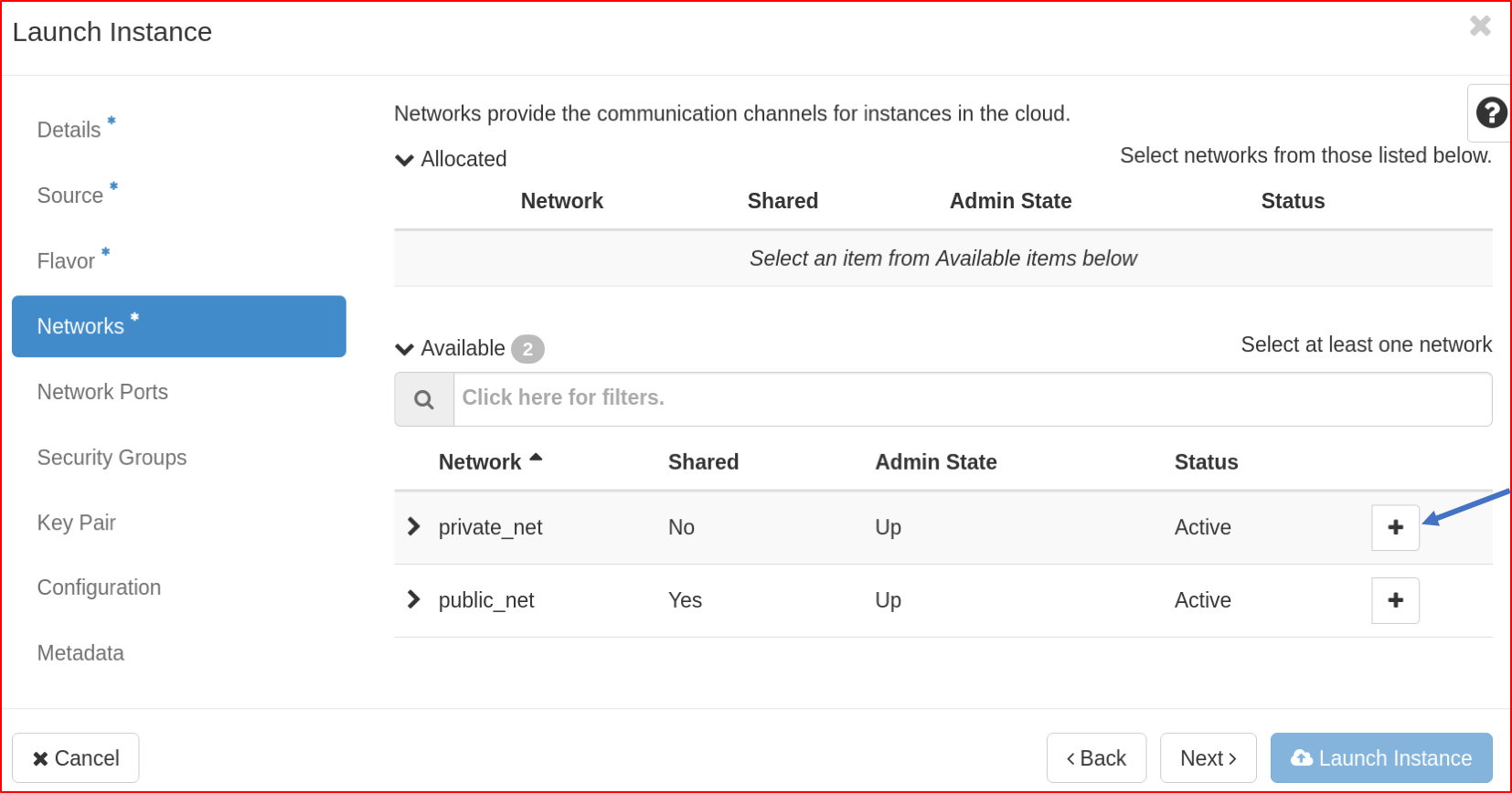
Networkstab, select the network for the VM. To access a VM with private IP, you need to first associate a floating ip to it and then to start a VPN connection.
-
in the
Security Groupstab, select from the Available menu the security groups you need for your VM (in the example in the figure, ssh security group is added).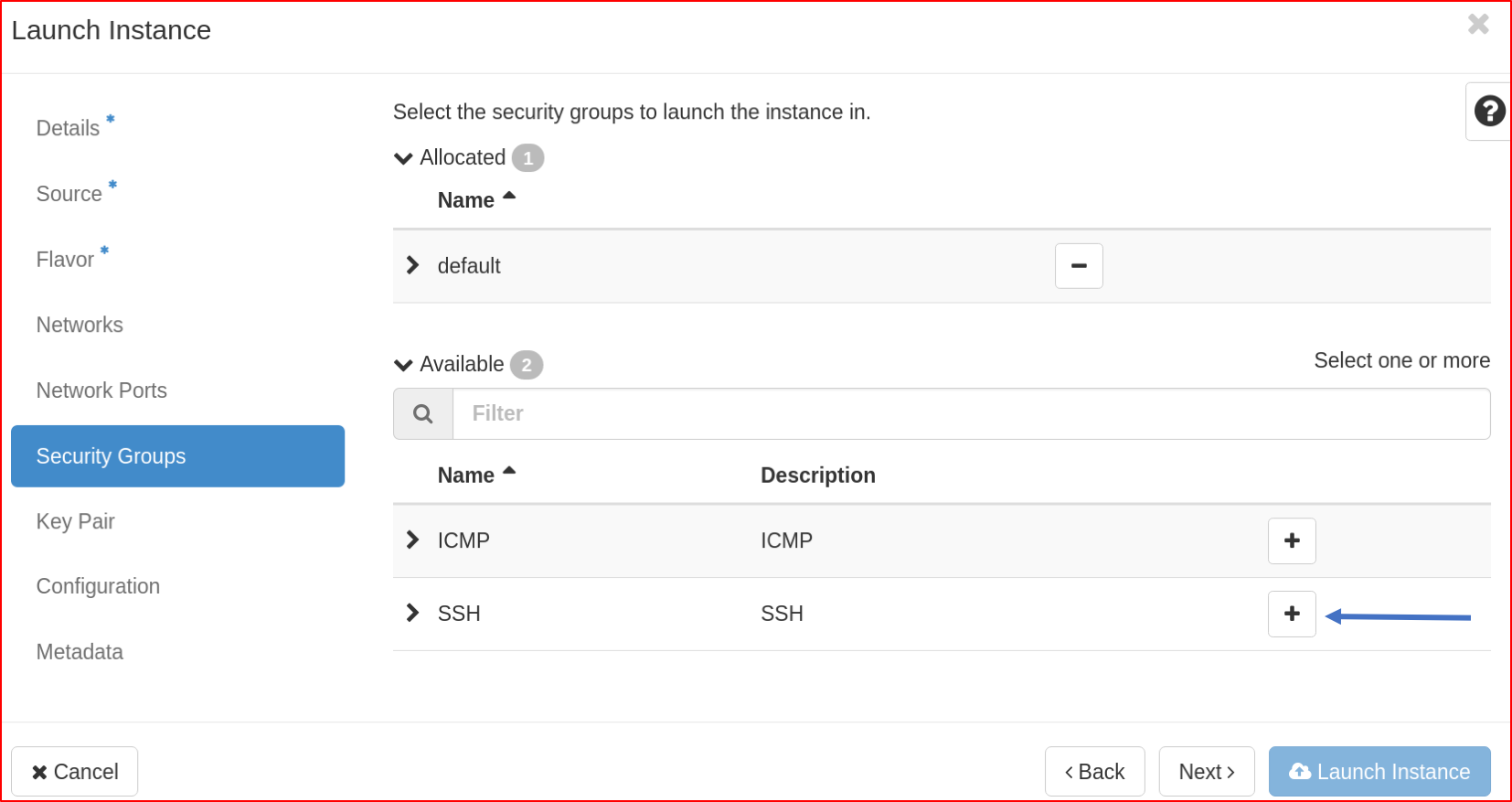
However, if you have not already created your Security Groups, at the end of this procedure, follow these instructions to create the Security Groups and add them to the VM;
-
in the
Key Pairtab, select your key from the Available menu; -
the tabs
Network Ports,ConfigurationandMetadataare for advanced settings, which are outside the purposes of this guide.
Once the desired configuration has been chosen, click the Launch instance button to create the VM. Please remind that VMs cannot be accessed unless you associate a floating ip and create and add to the VM proper Security Groups, as shown at this page.